





Cursor AI is an advanced code editor. The AI capabilities of the code editor make it an effective tool for use in the development workflow. Cursor AI is capable of following natural language commands, completing code intelligently, detecting bugs, and executing tasks across multiple files.
Regardless of whether you are using Windows or are a Linux lover, with the right steps, you can install AI. This is a comprehensive guide covering system requirements, as well as installation and configuration steps.
System Requirements
Before download Cursor AI, ensure your system meets the minimum requirements:
Operating System
- Windows: Windows 11 operating system
- Linux: Ubuntu 24.04, Debian, Fedora, or other mainstream distributions
Hardware
- RAM: Minimum 4 GB (8 GB recommended)
- Disk Space: At least 2 GB free
- GPU: Optional but recommended for smoother performance
Network
- A stable internet connection is required for AI features and updates.
Boost Your Productivity with Cursor AI!
Master AI-powered coding on Windows and Linux. Easily utilize Cursor AI and supercharge your development workflow.
Installing Cursor AI on Windows
The following are the steps to install Cursor AI on the Windows operating system:
Step 1: Download the Installer
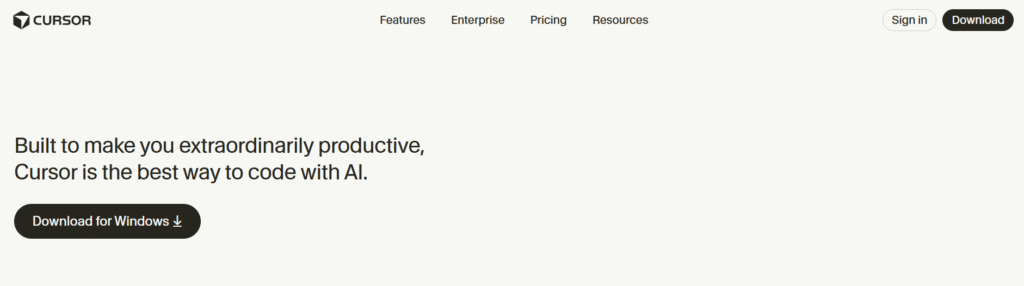
Visit the Cursor AI download page. Click on the Windows Installer (.exe) link.
Step 2: Run the Installer
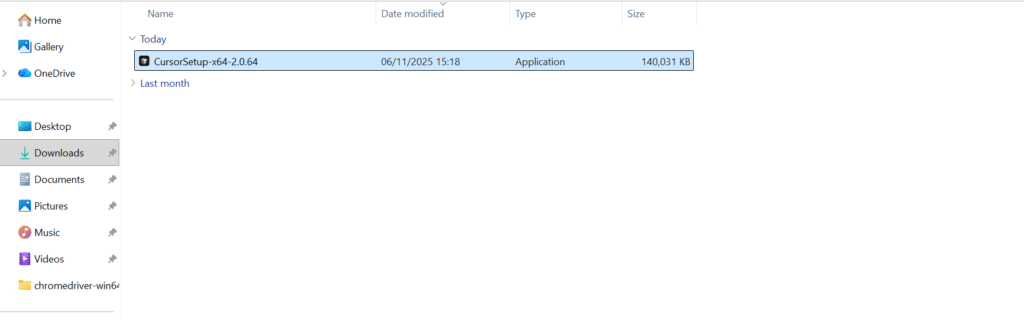
Double-click the downloaded .exe file. Now follow the installation wizard:
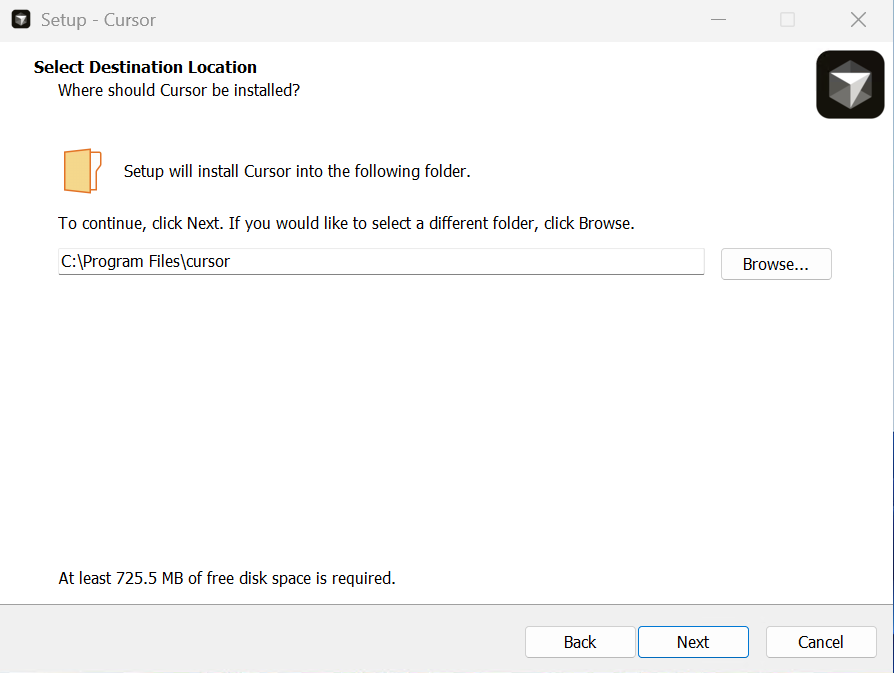
Accept the license agreement. Choose the installation directory. Select components such as CLI tools, and extensions etc.
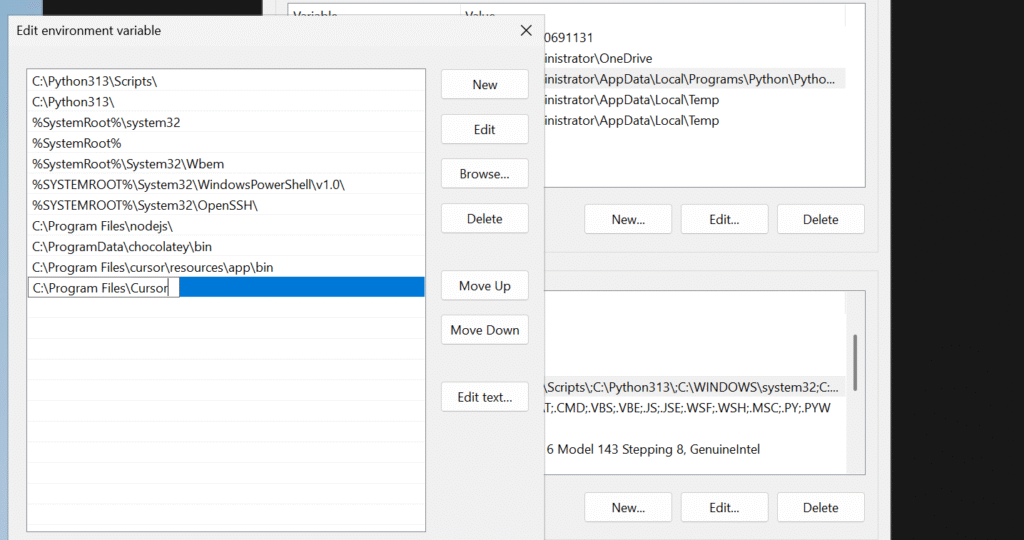
Step 3: Configure Environment Variables
To use Cursor CLI from the terminal:
Open “System Properties”, then “Environment Variables”. Add the Cursor’s install path C:\Program Files\Cursor to the PATH variable.
Step 4: Launch Cursor AI
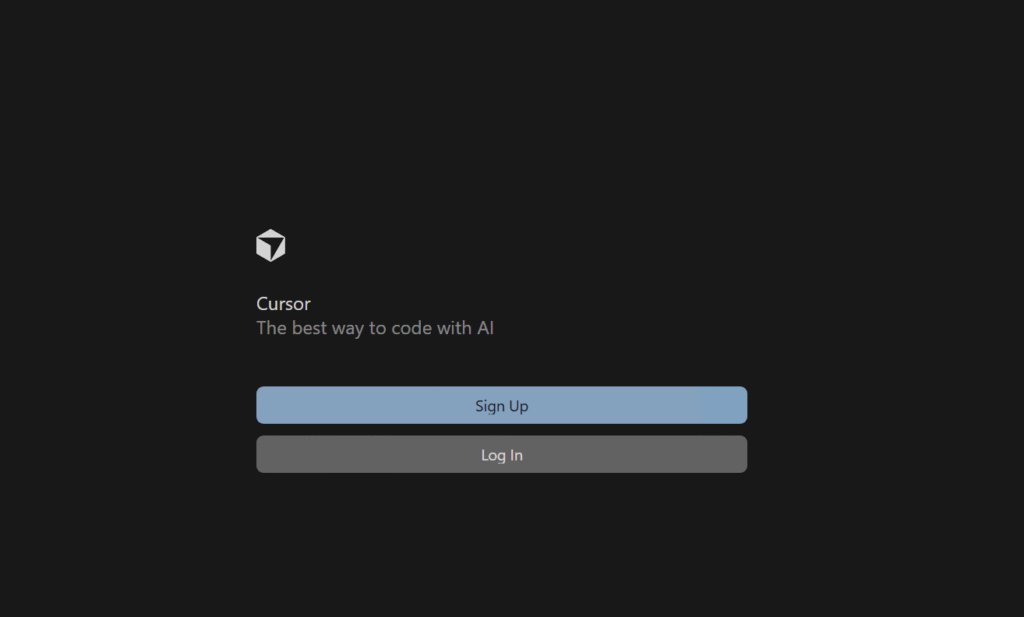
Open the Cursor from the Start Menu or desktop shortcut. Sign in or create an account to enable AI features.
Step 5: Verify Installation
Open Command Prompt and run the following:
cursor --version
You should see the installed version number.

Get 20% off on your first hosting purchase. Provide everything you need to create your website.
Installing Cursor AI on Linux
The following are the steps to install Cursor AI on the Ubuntu Linux operating system:
Step 1: Install Dependencies
Ensure your system has curl, git, and download Node.js and NPM properly:
sudo apt update
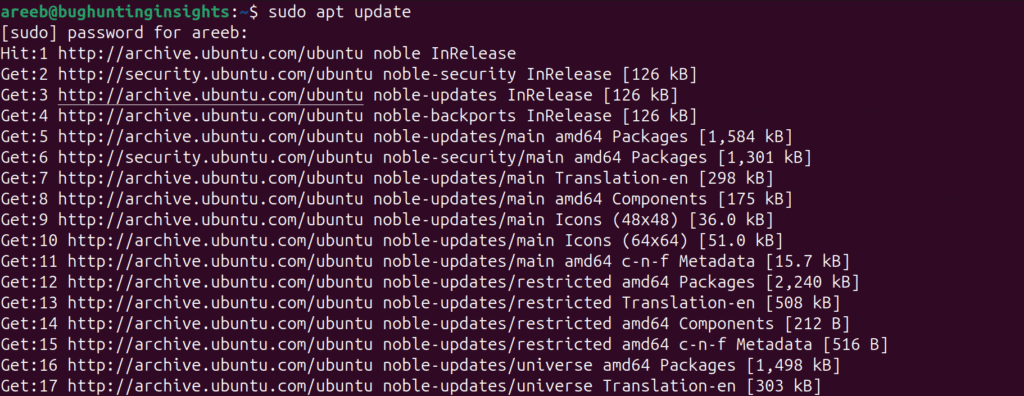
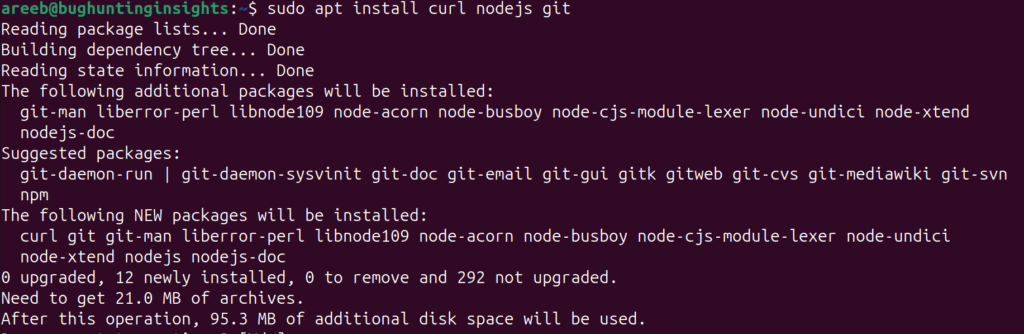
After updating the system, run the following command:
sudo apt install curl git nodejs
Step 2: Download and Run the Installer Script
Use the official installation script:
curl -fsSL https://cursor.sh/install.sh | bash
This script does the following things:
- Downloads the latest Cursor CLI
- Installs it to
/usr/local/bin - Sets up required dependencies
Step 3: Verify Installation
Run the following command in your terminal:
cursor --version
If installed correctly, you will see the version output.
Step 4: Launch the GUI
If you installed the GUI version:
- Run
cursorfrom terminal - Or launch from your desktop environment if integrated
Step 5: Configure PATH
If the cursor is not recognized, add it manually:
export PATH=$PATH:/usr/local/bin
Add this line to your .bashrc or .zshrc to persist.
Post Installation: Using Cursor AI
1. Use your GitHub or Google account. Enables AI features like code suggestions and bug detection.
2. Open a folder containing your codebase. Cursor will index your files and offer context-aware suggestions.
3. Cursor supports multiple languages, such as Python, JavaScript/TypeScript, Go, Rust, and C++.
4. Install extensions via the built-in marketplace or CLI:
cursor install-extension python
5. Another option is agent mode, which allows Cursor to perform multi-file tasks:
cursor agent enable
Use prompts like: “Refactor all functions inutils.py to use async syntax”.
Security and Privacy
Cursor AI processes code locally and uses secure APIs for AI features. It does not upload your entire codebase unless explicitly authorized. You can review privacy settings in. Disable cloud sync or telemetry if desired.
Conclusion
Installing Cursor AI on Windows and Linux is a straightforward process that unlocks a powerful AI-enhanced development environment. With features like natural language coding, multi-file refactoring, and intelligent debugging, Cursor AI is ideal for developers seeking productivity and precision.
If you are a cybersecurity enthusiast and interested in SQLi. Deep dive into SQL Injection vulnerabilities with the PortSwigger Lab case study.
FAQ
What is Cursor AI?
Cursor AI is an AI-powered code editor that helps developers write, debug, and optimize code faster.
Can I install Cursor AI on both Windows and Linux?
Yes, Cursor AI supports installation on both Windows and Linux operating systems.
How do I install Cursor AI on Windows?
You can download the installer from the official Cursor AI website and follow the setup wizard.
How do I install Cursor AI on Linux?
Use the terminal to download and install Cursor AI using the provided .deb or .AppImage file.
Is Cursor AI free to use?
Yes, Cursor AI offers a free version with essential AI coding features.
Do I need an internet connection to use Cursor AI?
Yes, an active internet connection is required for AI-assisted features.
Can I integrate Cursor AI with GitHub or other tools?
Absolutely! Cursor AI integrates with GitHub and popular developer tools.